> ## Documentation Index
> Fetch the complete documentation index at: https://docs.hexjobs.com/llms.txt
> Use this file to discover all available pages before exploring further.
# Introduction
# Hexjobs MCP Server
Hexjobs MCP (Model Context Protocol) server enables AI assistants to search and interact with job offers directly from your AI tools like Claude Desktop, Cline, or other MCP-compatible clients.
## What is MCP?
Model Context Protocol is an open standard that allows AI assistants to securely connect to external data sources and tools. With the Hexjobs MCP server, your AI assistant gains access to our job search platform.
## Getting Started
### Server Endpoint
Connect your MCP client to:
```
https://mcp.hexjobs.com/mcp
```
### Supported Clients
* **Claude Desktop** - Add server configuration to `claude_desktop_config.json`
* **Cline** - Configure in MCP settings
* **Any MCP-compatible client** - Use the HTTPS transport
## Features
The Hexjobs MCP server provides:
* **AI-Powered Job Search** - Search using natural language queries with semantic understanding
* **Advanced Filtering** - Filter by location, categories, experience level, salary, and more
* **Multi-Region Support** - Search across Poland, Germany, Austria
* **Detailed Job Information** - Get comprehensive job descriptions and requirements
* **Market Insights** - Access aggregated statistics about available positions
## Configuration Examples
### LM Studio
Click the button below to automatically add Hexjobs MCP server to LM Studio:
[](https://lmstudio.ai/install-mcp?name=hexjobs\&config=eyJ1cmwiOiJodHRwczovL21jcC5oZXhqb2JzLmNvbS9tY3AifQ%3D%3D)
Or manually add to LM Studio MCP settings:
```json theme={null}
{
"mcpServers": {
"hexjobs": {
"url": "https://mcp.hexjobs.com/mcp"
}
}
}
```
### Claude Desktop
#### Option 1: Using Connectors UI (Recommended)
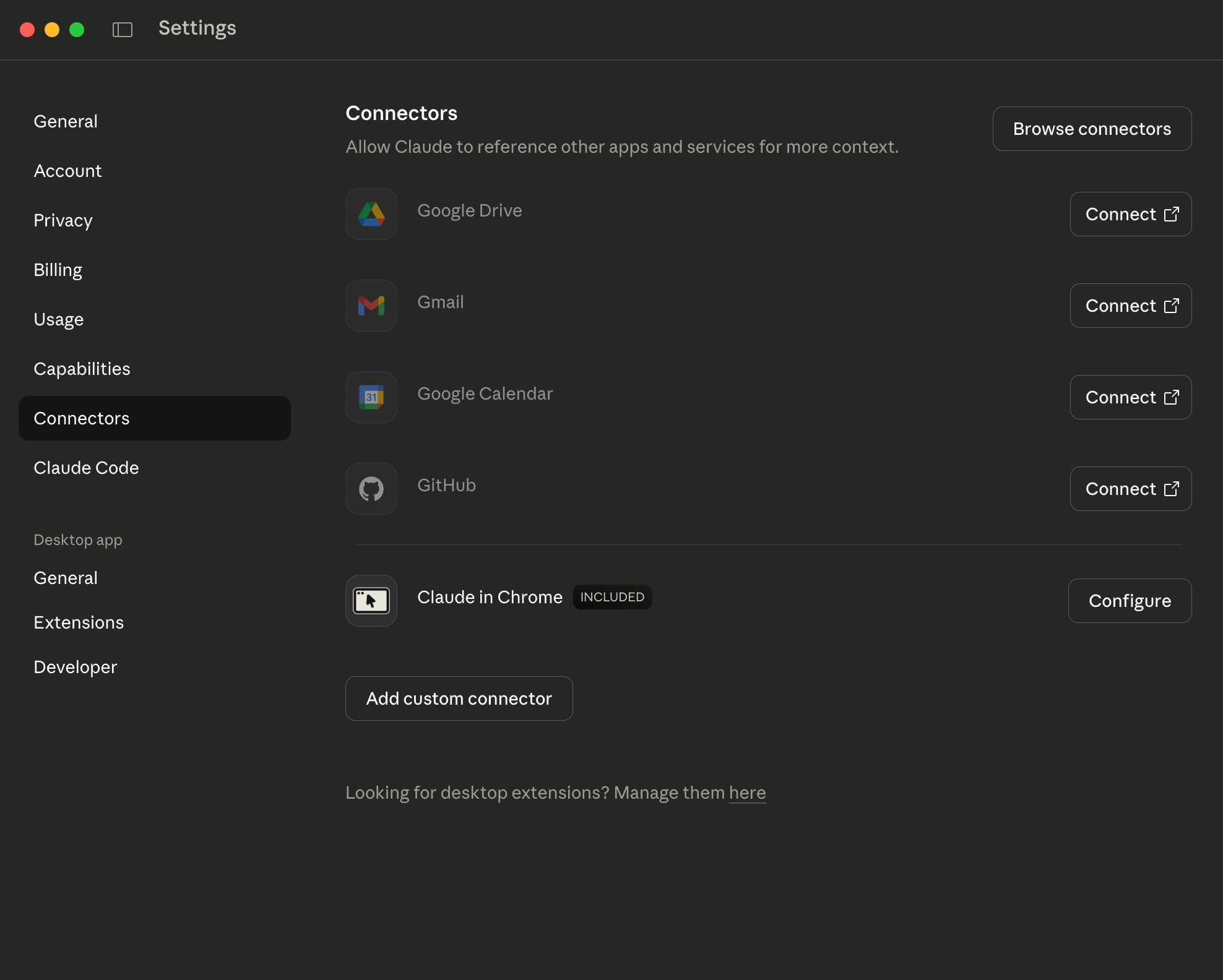
1. Open Claude Desktop and go to **Settings**
2. Navigate to **Connectors** section
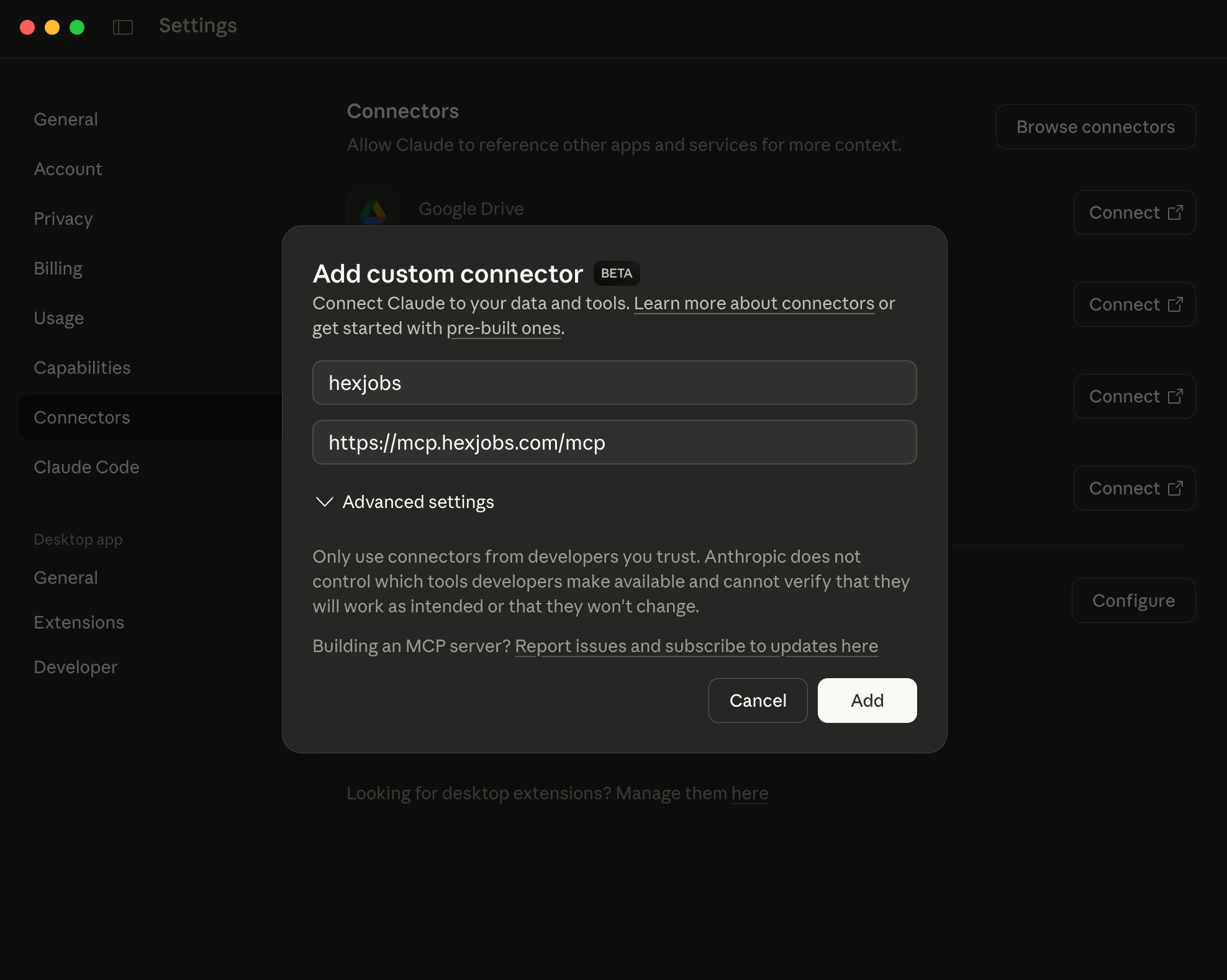
3. Click **Add custom connector**
4. Fill in the details:
* **Name**: `hexjobs`
* **URL**: `https://mcp.hexjobs.com/mcp`
5. Click **Add**
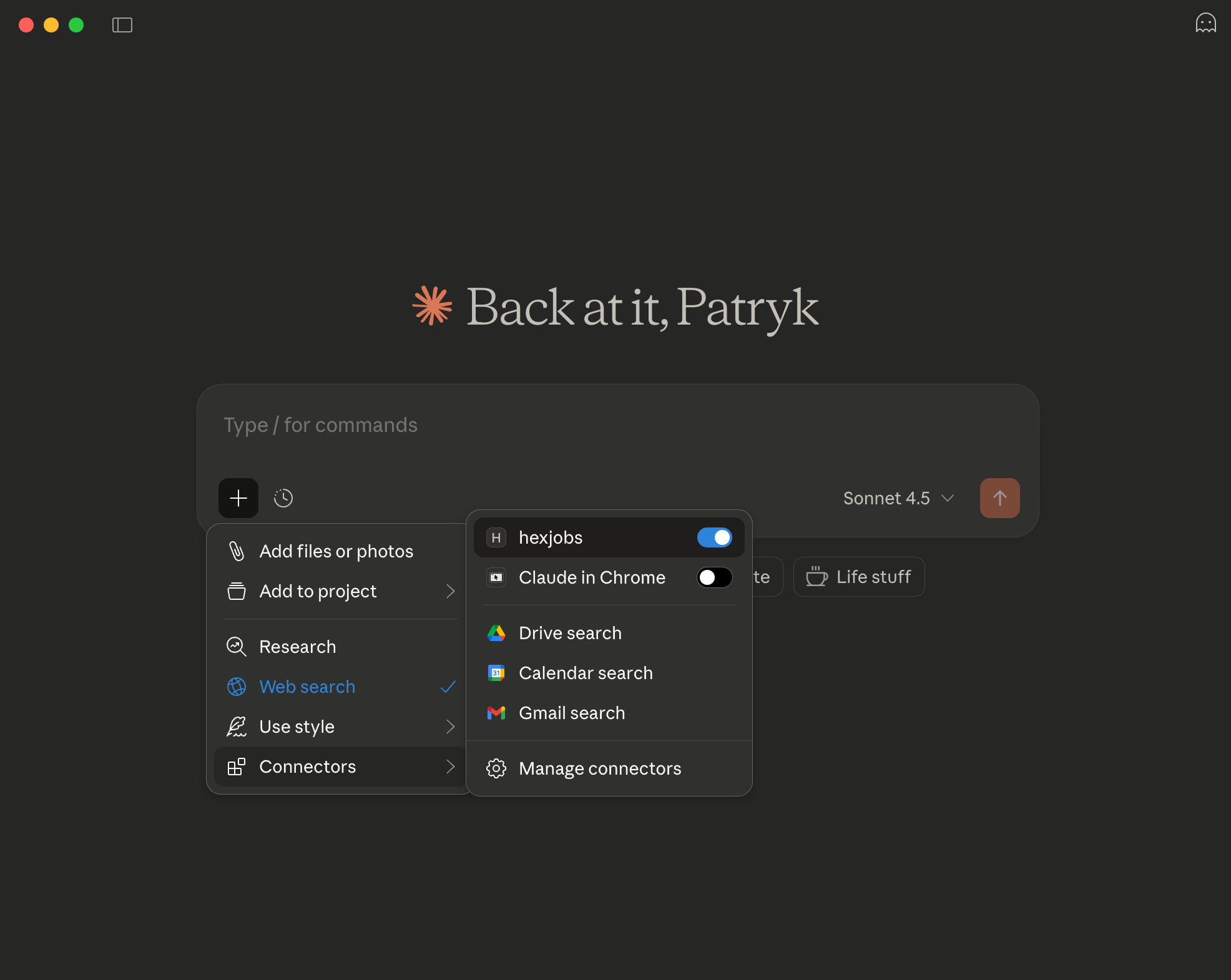
6. Enable the hexjobs connector toggle
 #### Option 2: Manual Configuration File
Alternatively, add to `~/Library/Application Support/Claude/claude_desktop_config.json` (macOS) or `%APPDATA%/Claude/claude_desktop_config.json` (Windows):
```json theme={null}
{
"mcpServers": {
"hexjobs": {
"url": "https://mcp.hexjobs.com/mcp"
}
}
}
```
Restart Claude Desktop after saving the configuration.
### ChatGPT Desktop
Add to ChatGPT Desktop MCP configuration file located at:
* **macOS**: `~/Library/Application Support/OpenAI/ChatGPT/mcp_config.json`
* **Windows**: `%APPDATA%/OpenAI/ChatGPT/mcp_config.json`
```json theme={null}
{
"mcpServers": {
"hexjobs": {
"url": "https://mcp.hexjobs.com/mcp"
}
}
}
```
### Cline (VS Code Extension)
1. Open VS Code with Cline extension installed
2. Go to Cline settings
3. Navigate to MCP Servers section
4. Add new server:
* **Name**: Hexjobs
* **URL**: `https://mcp.hexjobs.com/mcp`
### Cursor
Add to Cursor MCP configuration in Settings → Features → Model Context Protocol:
```json theme={null}
{
"mcpServers": {
"hexjobs": {
"url": "https://mcp.hexjobs.com/mcp"
}
}
}
```
### Custom MCP Client
For any other MCP-compatible client, configure it to connect via HTTPS:
* **Transport**: HTTPS
* **Endpoint**: `https://mcp.hexjobs.com/mcp`
* **Protocol Version**: Latest MCP specification
## Usage Examples
Once connected, you can ask your AI assistant:
* "Find Python developer jobs in Warsaw"
* "Show me remote senior positions in Germany"
* "What are the most popular IT job categories?"
* "Search for CTO positions with minimum salary 20000"
## Privacy & Security
* All communication uses secure HTTPS transport
* No authentication required for public job data
* Read-only access - the server cannot modify data
* No personal data collection
## Technical Details
* **Protocol**: Model Context Protocol (MCP)
* **Transport**: HTTPS
* **Response Format**: JSON
* **Rate Limiting**: Standard fair-use limits apply
## Support
For issues or questions about the Hexjobs MCP server, please contact our support team or visit our documentation.
#### Option 2: Manual Configuration File
Alternatively, add to `~/Library/Application Support/Claude/claude_desktop_config.json` (macOS) or `%APPDATA%/Claude/claude_desktop_config.json` (Windows):
```json theme={null}
{
"mcpServers": {
"hexjobs": {
"url": "https://mcp.hexjobs.com/mcp"
}
}
}
```
Restart Claude Desktop after saving the configuration.
### ChatGPT Desktop
Add to ChatGPT Desktop MCP configuration file located at:
* **macOS**: `~/Library/Application Support/OpenAI/ChatGPT/mcp_config.json`
* **Windows**: `%APPDATA%/OpenAI/ChatGPT/mcp_config.json`
```json theme={null}
{
"mcpServers": {
"hexjobs": {
"url": "https://mcp.hexjobs.com/mcp"
}
}
}
```
### Cline (VS Code Extension)
1. Open VS Code with Cline extension installed
2. Go to Cline settings
3. Navigate to MCP Servers section
4. Add new server:
* **Name**: Hexjobs
* **URL**: `https://mcp.hexjobs.com/mcp`
### Cursor
Add to Cursor MCP configuration in Settings → Features → Model Context Protocol:
```json theme={null}
{
"mcpServers": {
"hexjobs": {
"url": "https://mcp.hexjobs.com/mcp"
}
}
}
```
### Custom MCP Client
For any other MCP-compatible client, configure it to connect via HTTPS:
* **Transport**: HTTPS
* **Endpoint**: `https://mcp.hexjobs.com/mcp`
* **Protocol Version**: Latest MCP specification
## Usage Examples
Once connected, you can ask your AI assistant:
* "Find Python developer jobs in Warsaw"
* "Show me remote senior positions in Germany"
* "What are the most popular IT job categories?"
* "Search for CTO positions with minimum salary 20000"
## Privacy & Security
* All communication uses secure HTTPS transport
* No authentication required for public job data
* Read-only access - the server cannot modify data
* No personal data collection
## Technical Details
* **Protocol**: Model Context Protocol (MCP)
* **Transport**: HTTPS
* **Response Format**: JSON
* **Rate Limiting**: Standard fair-use limits apply
## Support
For issues or questions about the Hexjobs MCP server, please contact our support team or visit our documentation.